
Why Your WiFi Signal Is So Weak (And How to Fix It)
A quick explainer on the common reasons WiFi signal gets weak at home — and simple things you can try to improve it. Handy if some rooms are slow or spotty.
Watch on YouTube
Enterprise-grade fiber internet at the lowest price in town — with free installation and quick, local support. Plans starting at just ₱600/month.
All plans are unlimited fiber with free installation. Prices are per month in Philippine Peso (₱).
Now serving these barangays in Maddela, Quirino — and growing:
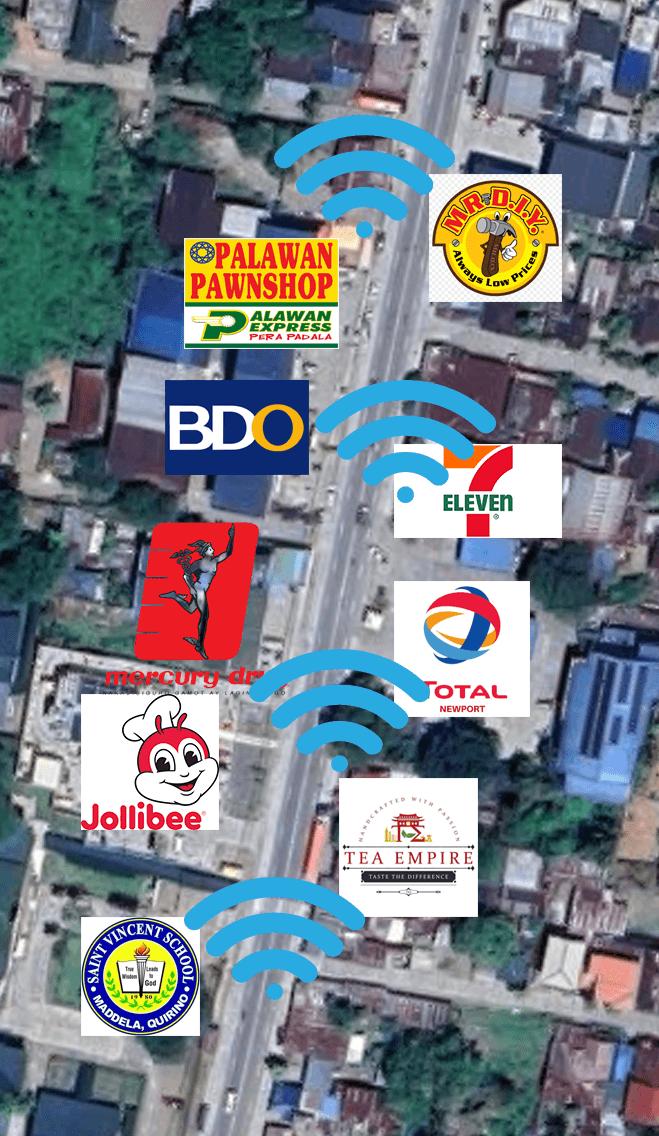
SwitchLink powers a Free WiFi Zone around Poblacion, Maddela — for subscribers and everyone else. Just connect to the SwitchLink network and get online. Subscribers enjoy a free daily voucher; guests can grab free minutes or buy a voucher.
Fill in your details and send — we'll get in touch to schedule your free installation.
Aldines Waterstation & Laundry · National Rd., Poblacion Norte, Maddela, Quirino
Prefer to call or text? 09754903414
Short, helpful videos for subscribers — quick fixes and know-how you can try at home.
A quick explainer on the common reasons WiFi signal gets weak at home — and simple things you can try to improve it. Handy if some rooms are slow or spotty.
Watch on YouTubeMost outages at home are power, a loose fiber, or a unit that needs restarting. Try these in order before calling — it fixes it most of the time.
Your unit tells you where the problem is before you even call. The LOS light is the important one.
| Light | What you see | What it means | What to do |
|---|---|---|---|
| POWER / PWR | Off | The unit has no power. | Check the adapter is plugged in and the outlet has power. Check your breaker. |
| POWER / PWR | Solid green | The unit is powered normally. | Nothing to do. |
| PON | Blinking | Still trying to connect to our network. | Wait about 2 minutes. If it keeps blinking, message us. |
| PON | Solid green | Connected to our network normally. | Nothing to do. |
| LOS | Off | The fiber signal is fine. | Nothing to do. |
| LOS | Red / blinking red | No fiber signal reaching your unit — usually a cut or unplugged fiber line. | Do not open the unit. Message or call us right away and mention the red LOS light. |
| LAN / ETH | Off | Nothing is connected to that LAN port. | Only matters if you use a cable. Check the cable at both ends. |
| LAN / ETH | Blinking green | A device is connected and passing data. | Nothing to do. |
| WLAN / WiFi | Off | The WiFi radio is switched off. | Press the WLAN button on the unit, or message us. |
| WLAN / WiFi | Blinking green | WiFi is on and working. | Nothing to do. |
Reconnection is not always instant. Here is what to expect and how to speed it up.
Payments made outside office hours may be posted the next working day.
A weak signal in a far room is usually distance and walls, not your plan speed.
Call or text us and we'll guide you through changing your WiFi name or password — it only takes a minute over the phone.
Message or call us — tell us which lights are on and what you already tried, and we'll sort it out faster.